

This guide will show you step by step how to place an order in the Sana Swiss Services webshop – from registration and product search to using filters, comparison tools, and ordering features, all the way to order management. You’ll also find information on bonus points, SANAcheck, and other helpful functions for efficient order processing.
Login and account
1. Open our website at https://sana.swiss and click "Login" at the top right corner.

2. Log in with your personal access credentials.
If you haven't received a login yet or need an additional one (e.g., for nursing or housekeeping), please contact us.
On your first login, you will set your own password – the link was sent via email.
Important: The order process only works properly when logged in, and your personal terms will be displayed.
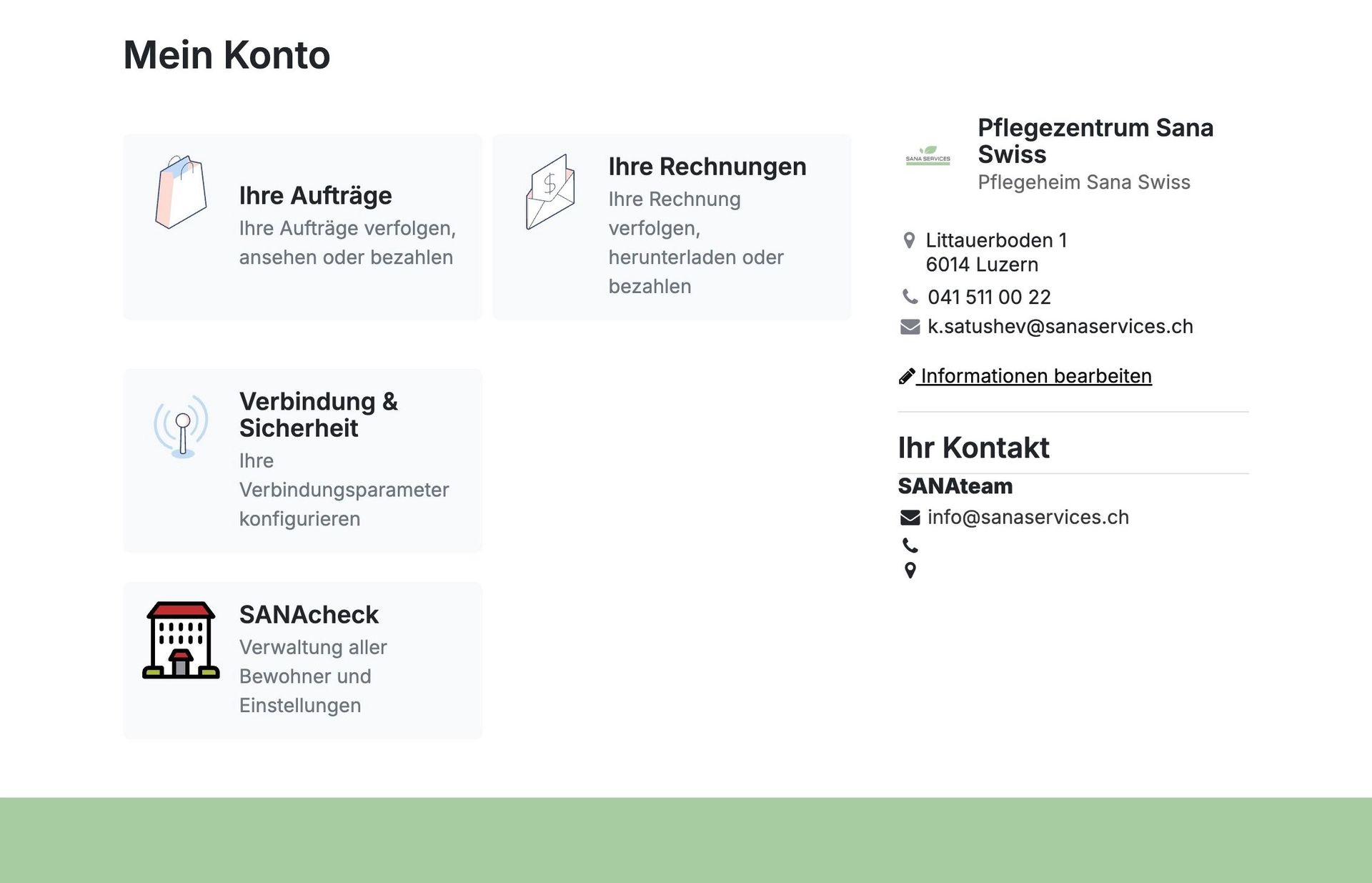
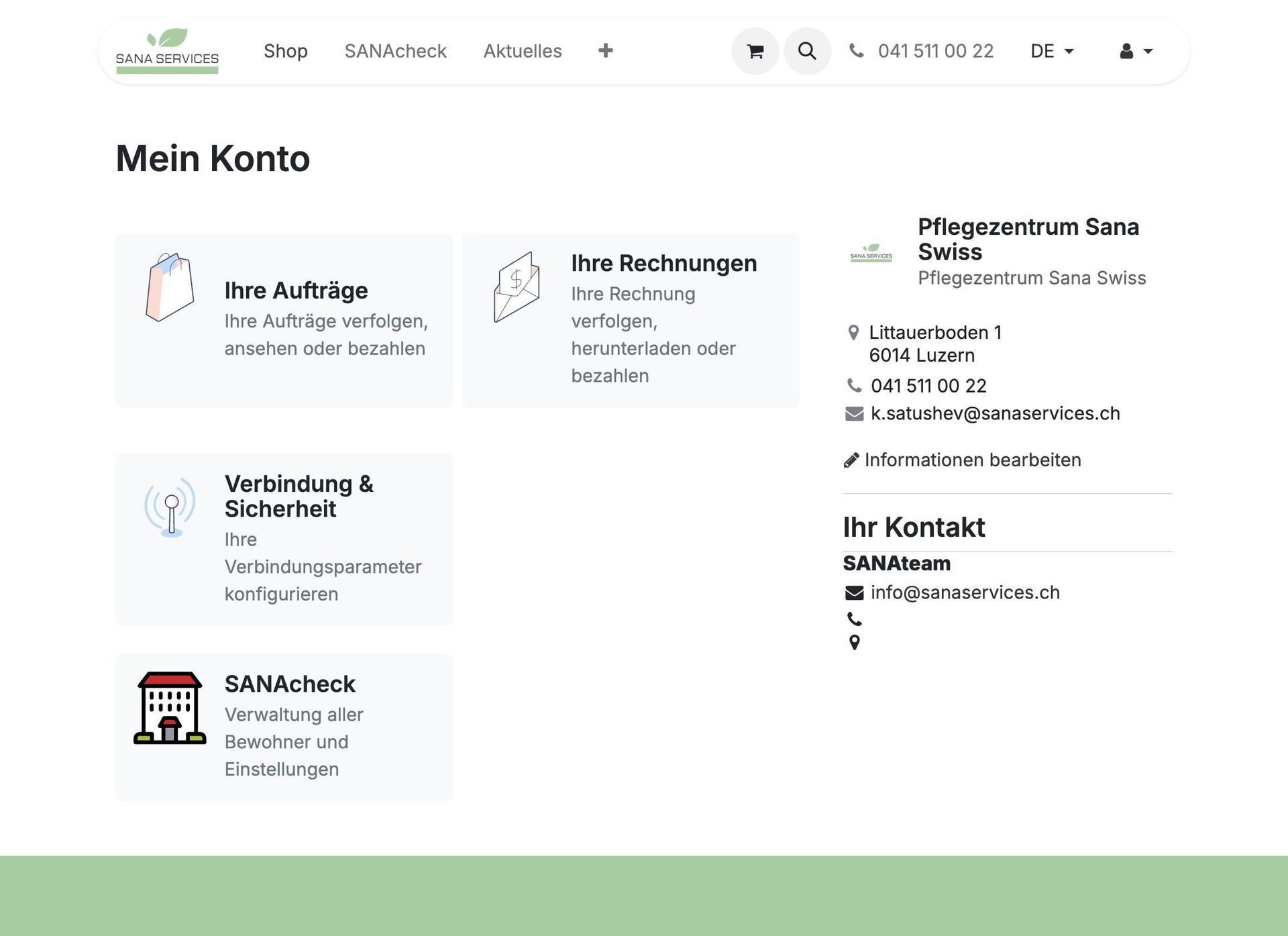
3. Click on "Edit Information".
Under "My Account" you can review and update your contact details as needed.
You will also find an overview of all your "Orders" and "Invoices" – which you can view, track, or pay directly.
Two-factor authentication
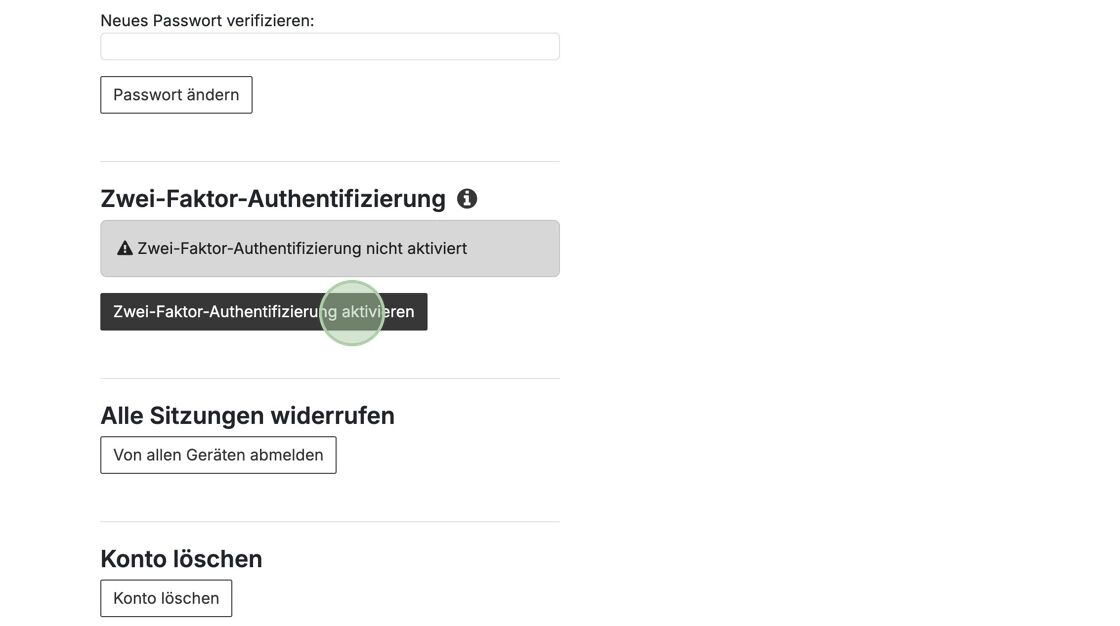
4. For additional security, we recommend enabling Two-Factor Authentication (2FA).
In your account, go to "My Account" → "Connection & Security"
Click "Enable Two-Factor Authentication"
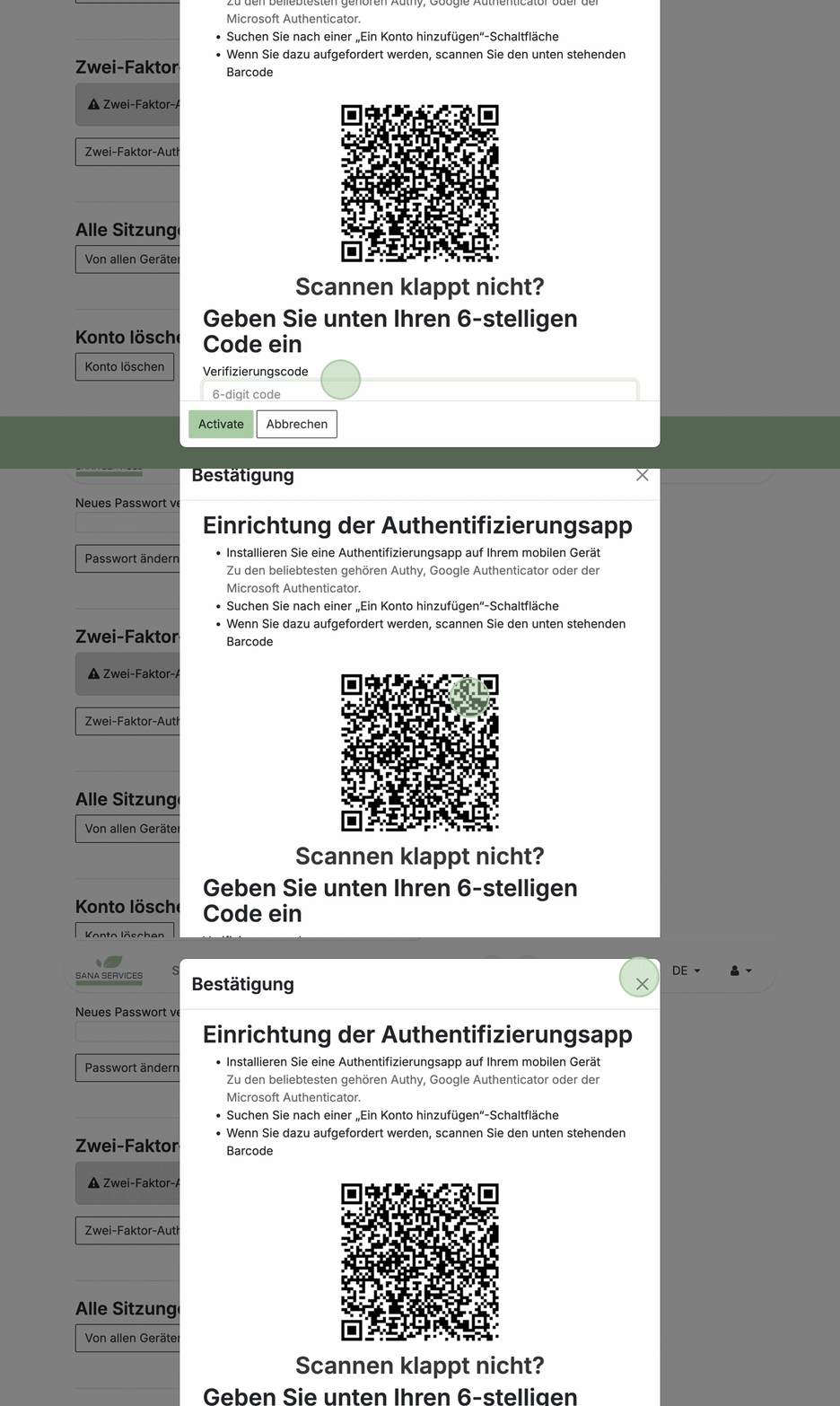
5. Setup using an authenticator app:
Install an authenticator app on your mobile device, such as Authy, Google Authenticator, or Microsoft Authenticator.
Open the app and choose "Add Account"
Scan the QR code shown on screen
Problems scanning?
If scanning the QR code doesn’t work, you can enter the shown 6-digit code manually in the app.
Finding products
6. After logging in, you now have access to the webshop with your individual conditions.
Simply click "Shop" in the top navigation.
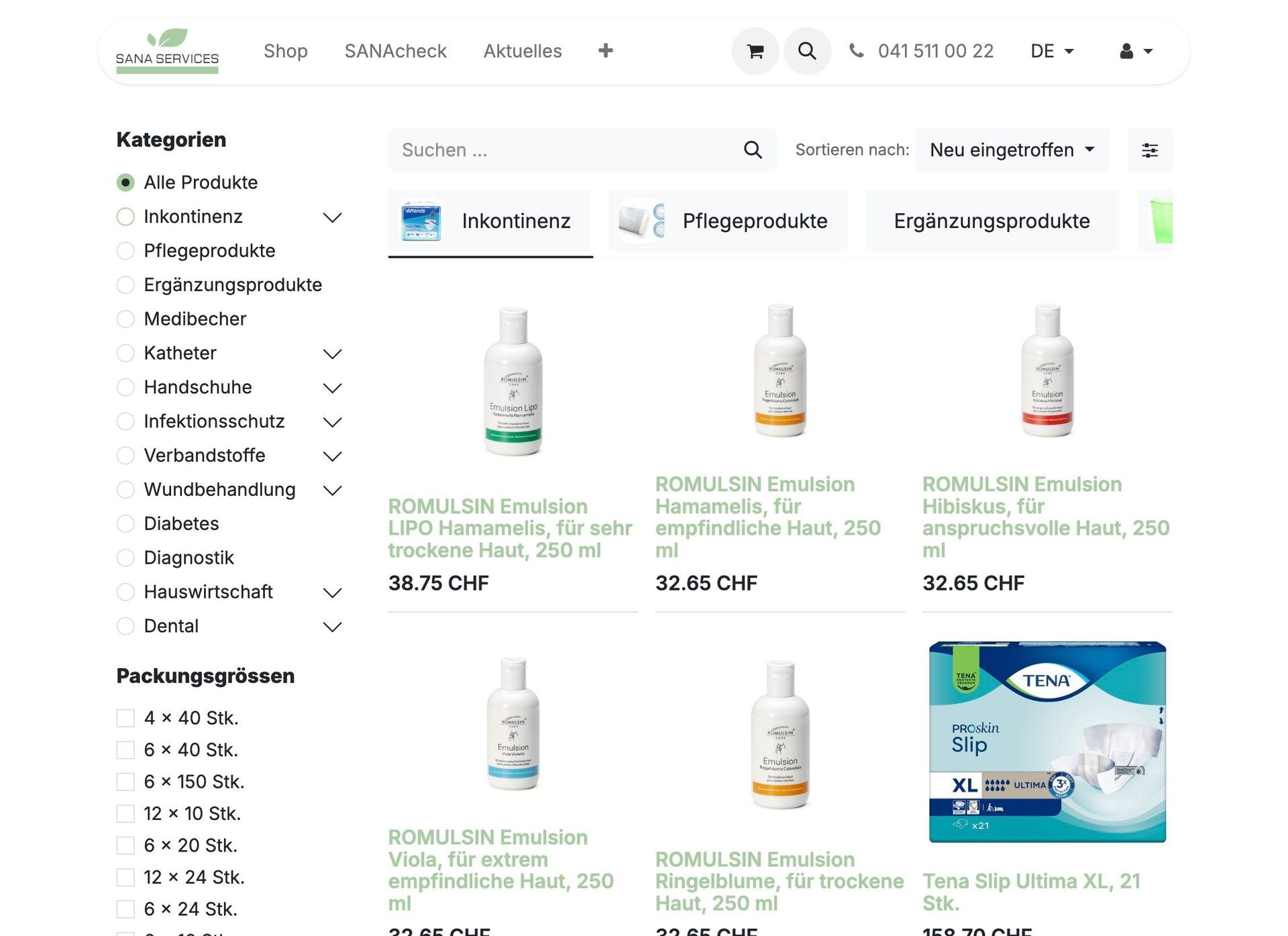
7. In the Shop, you can quickly find the right products.

Use the filters on the left to narrow down by categories like incontinence, sizes, packaging units, or price ranges.

8. You can also sort the product list – e.g., by popularity, newest, name (A–Z), or price.
9. Alternatively, use the product search: Enter the product name, reference number, or Pharmacode.

10. All filters can be combined to find exactly what you need more quickly.
Product details, wishlist and comparison
11. Clicking a product opens the detailed view with all the important information:

You will see the product name, a description and various attributes such as size, length, material or other technical details. The packaging units are also shown – depending on the product, you can choose between pack, carton or pallet (not available for all items).
You will also find our internal reference number, the Pharmacode and the MiGeL classification (incl. the annual HVB care allowance)
Select the desired quantity and add it to your cart at the bottom.
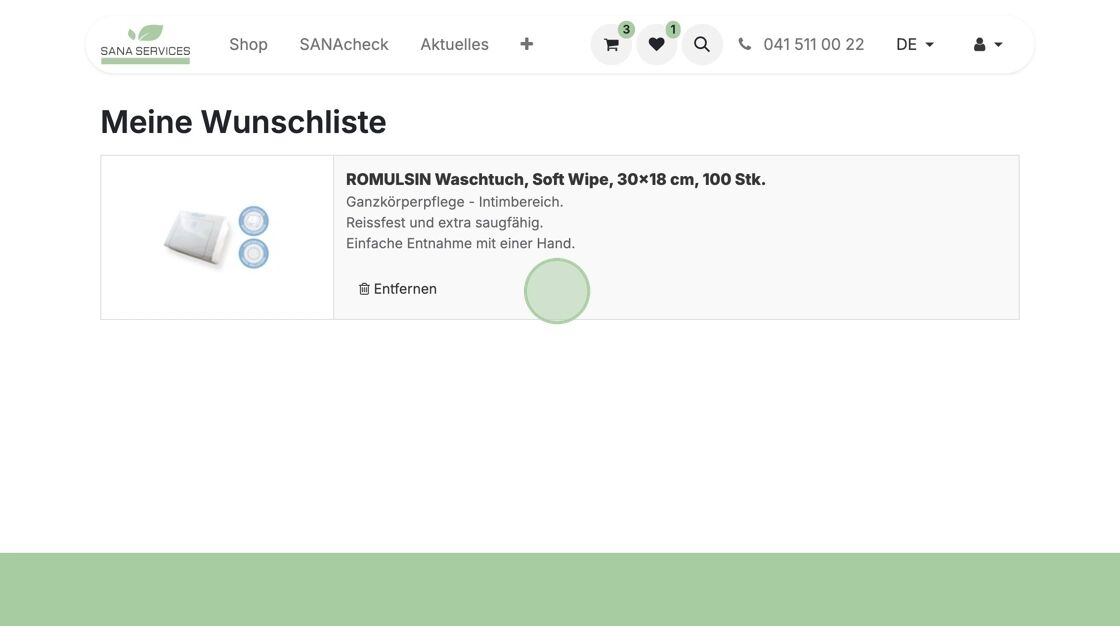
12. Add items to your wishlist – perfect for quickly reordering favorites.
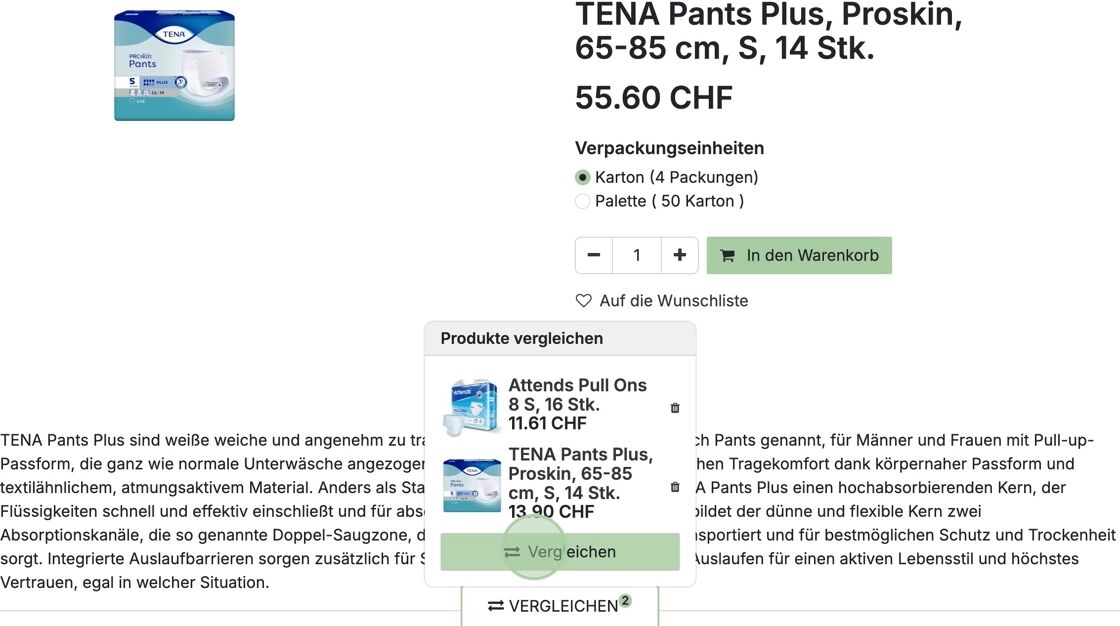
13. Use the comparison feature to view products side-by-side by price, packaging, features, etc.
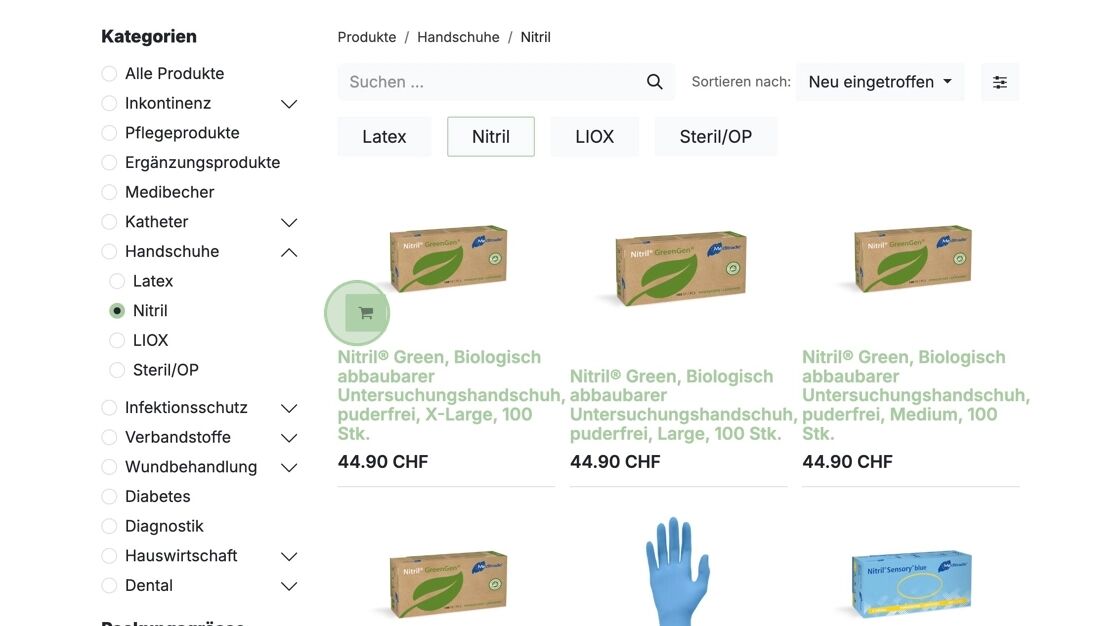
14. Tip: If you already know the product, add it directly from the overview without clicking into the detail page.
Cart and checkout
15. Once you've selected your products, click the "cart" icon in the top menu to view your order summary.
Review your order, adjust quantities, or remove items as needed.

16. Tip: For orders over CHF 1,000, you earn SANA bonus points – only through webshop orders.
You can redeem them on your next order or save them for later.
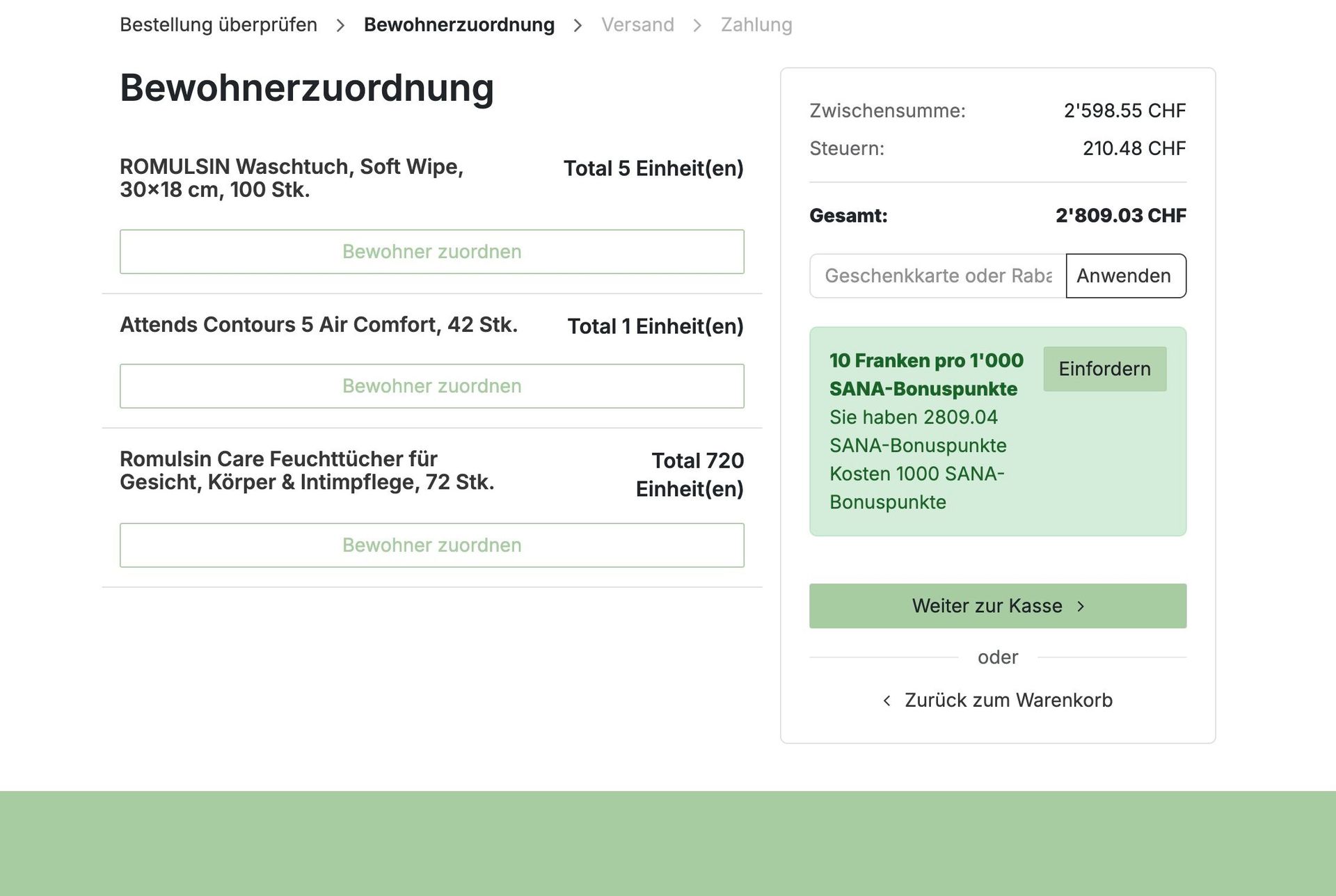
17. Using SANAcheck? You can automatically assign MiGeL products to residents in the next step.
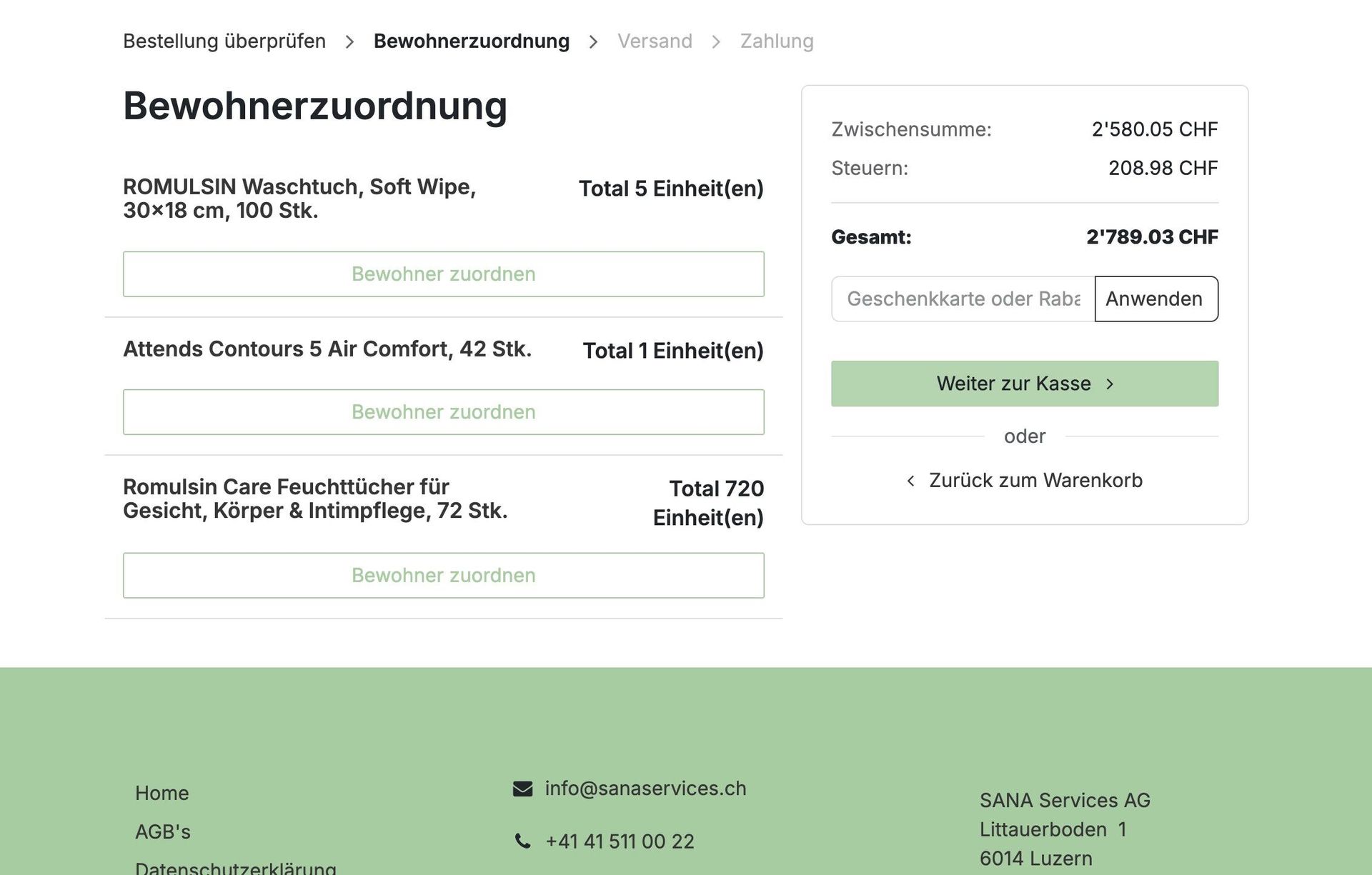
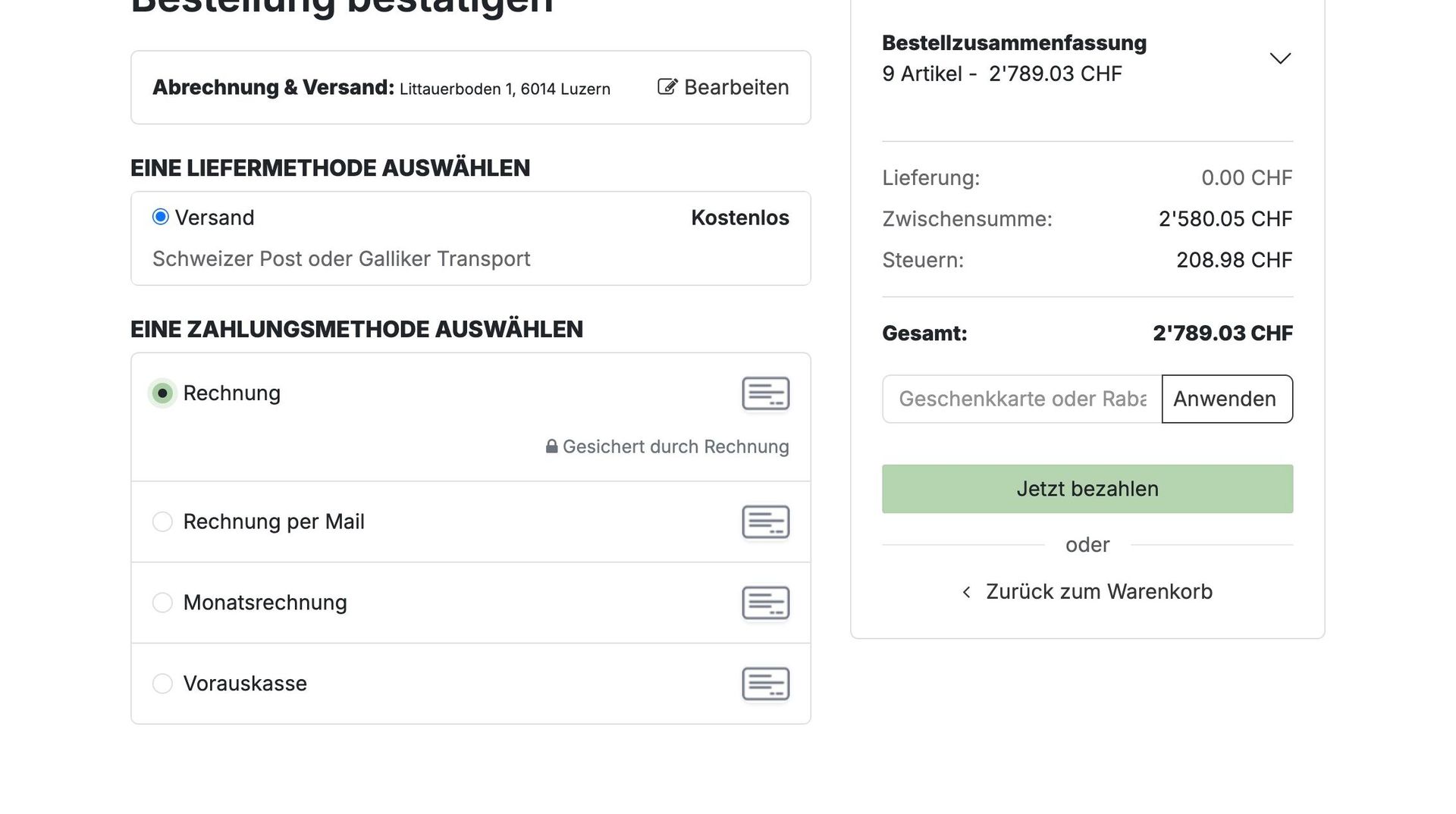
18. Now choose your preferred delivery and payment method and complete the order.
Good to know: Orders over CHF 300 are delivered free of charge.
After ordering

19. After placing your order, you can view, save, or print the order confirmation directly in the shop.
You'll also receive it via email including the estimated delivery date.
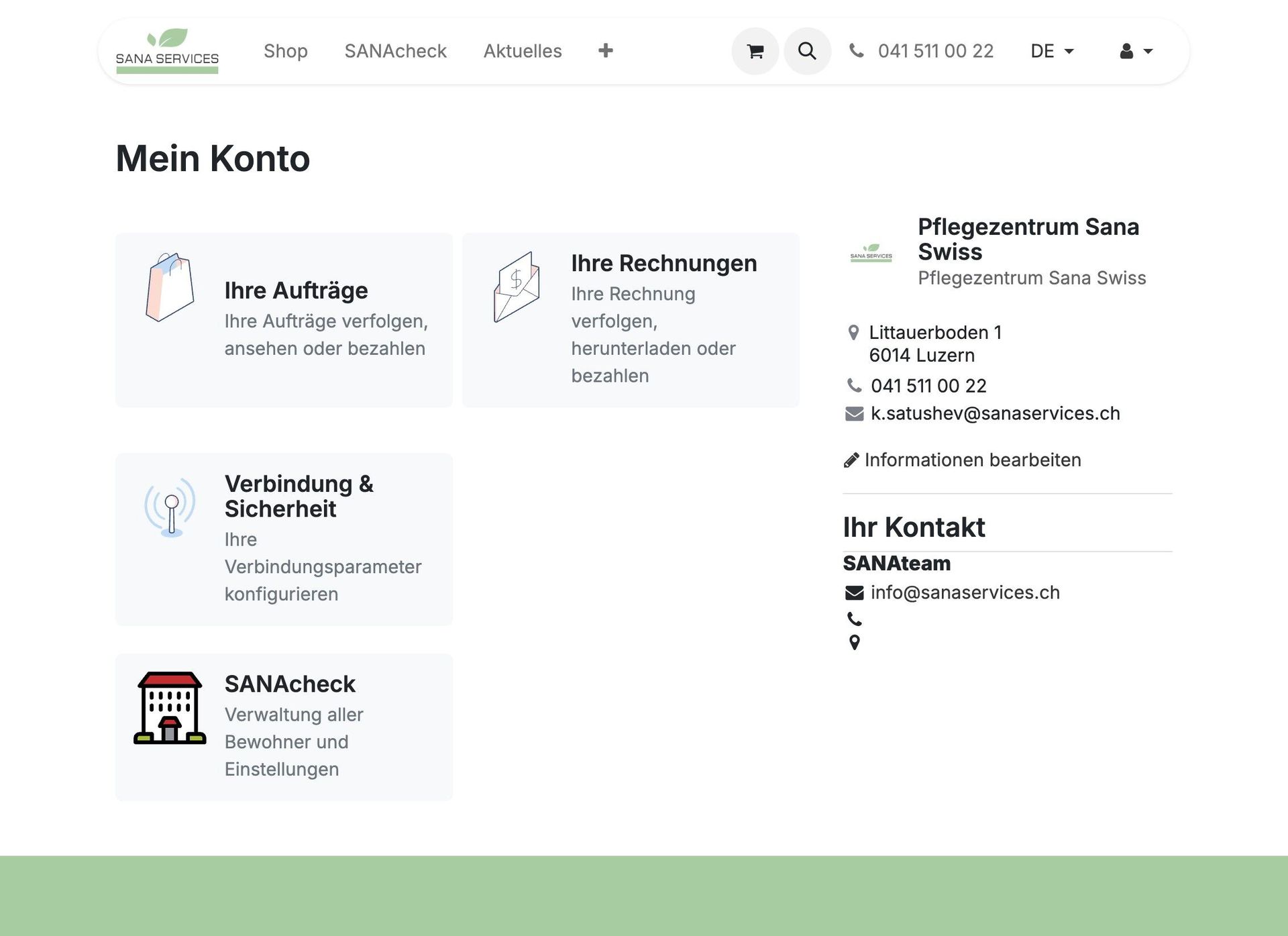
20. You can access your orders and invoices anytime under "My Account" to view, track, or pay them.
Invoices are sent by email after shipment and also stored in your account for convenience.
21. Can't find the confirmation email or forgot to save the document? No problem.
Under "My Account" → "View Orders", click "Details" to view or download any order again.
Same applies to your invoices – always accessible from your account.

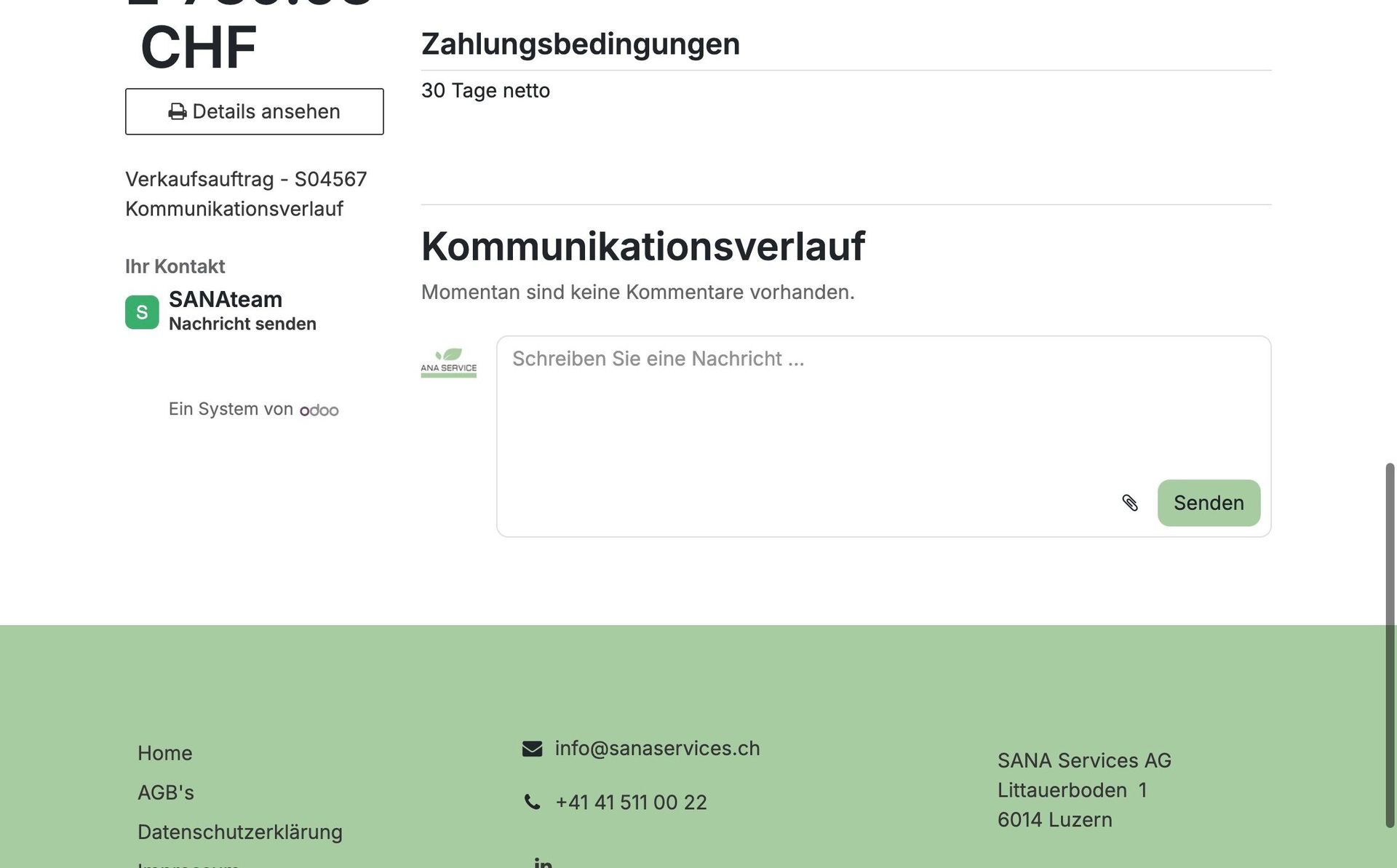
22. When viewing orders under "My Account", you can leave a message for any specific order – for example, to ask questions or provide additional information.
Our team will receive your message directly and take care of it promptly.
23. Your online order with Sana Swiss Services is now successfully completed.
If you have any questions or need assistance, our customer service is always happy to help.
Thank you for helping us reduce healthcare costs together.
Your Sana Swiss Team
0 comments