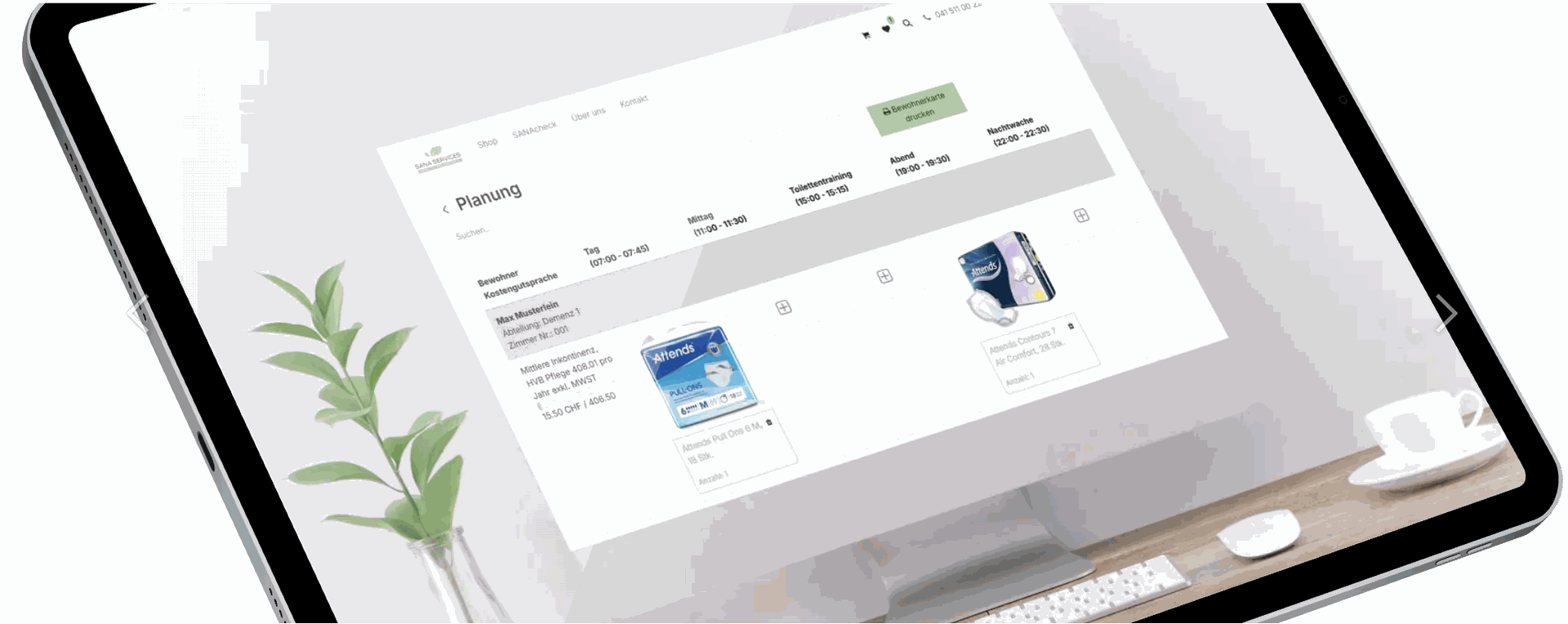

SANAcheck is your digital assistant for delivering tailored and economical care to your residents. This step-by-step guide walks you through how to use SANAcheck – from setting up resident profiles to assessing needs, verifying prescriptions, and managing resident-specific orders.
SANAcheck eases the workload of care facilities by enabling structured documentation and simplifying the ordering process – especially for MiGeL-listed products. The goal: save valuable time for care professionals while reducing costs for residents and the healthcare system.
What makes SANAcheck unique:
- Save costs – easily and securely: Order based on individual needs instead of flat rates or overstocking.
- More time for care: Automated processes relieve staff of routine tasks.
- Flexible planning: Scheduling by shift, day/night, department, or time slot is fully supported.
- Digital prescription management: Get reminders when medical prescriptions are about to expire.
- Full access to all MiGeL products
- Optional additional items: Easily add gloves, disposables, and more.
- Resident-focused features: Toilet visit planning, resident ID cards, and intuitive item assignment.

Login and account
1. Open our website at https://sana.swiss and click "Login" in the top right corner.


2. Log in with your personal access credentials.
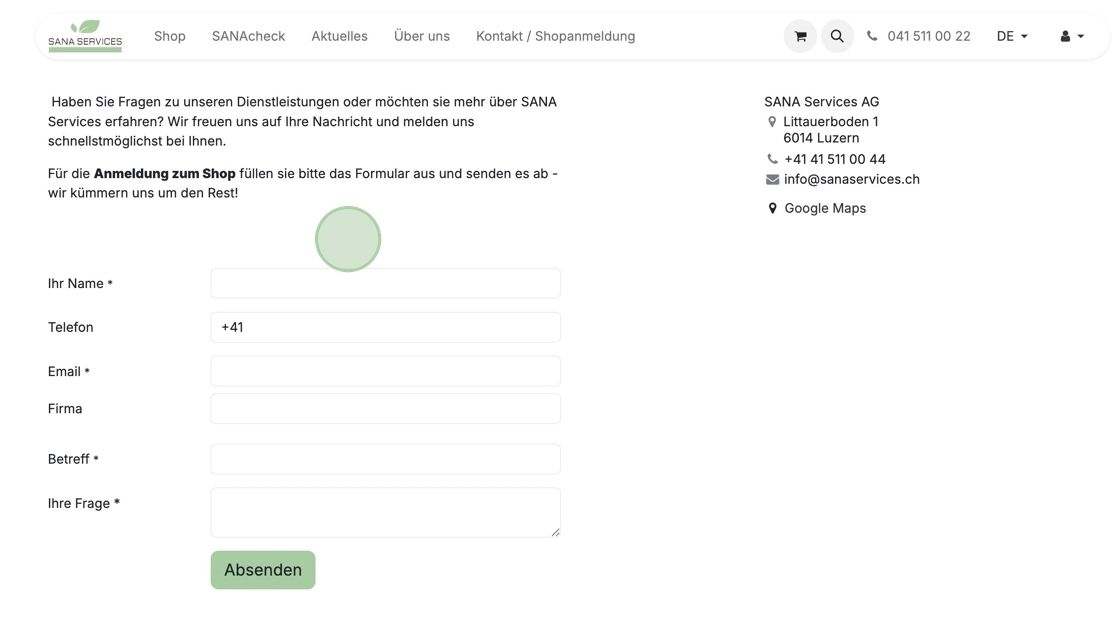
If you have not yet received login details or need an additional one (e.g. separate for nursing or housekeeping), please contact us.
During your first login, you will set your own password – the link to do so was sent to you via email.
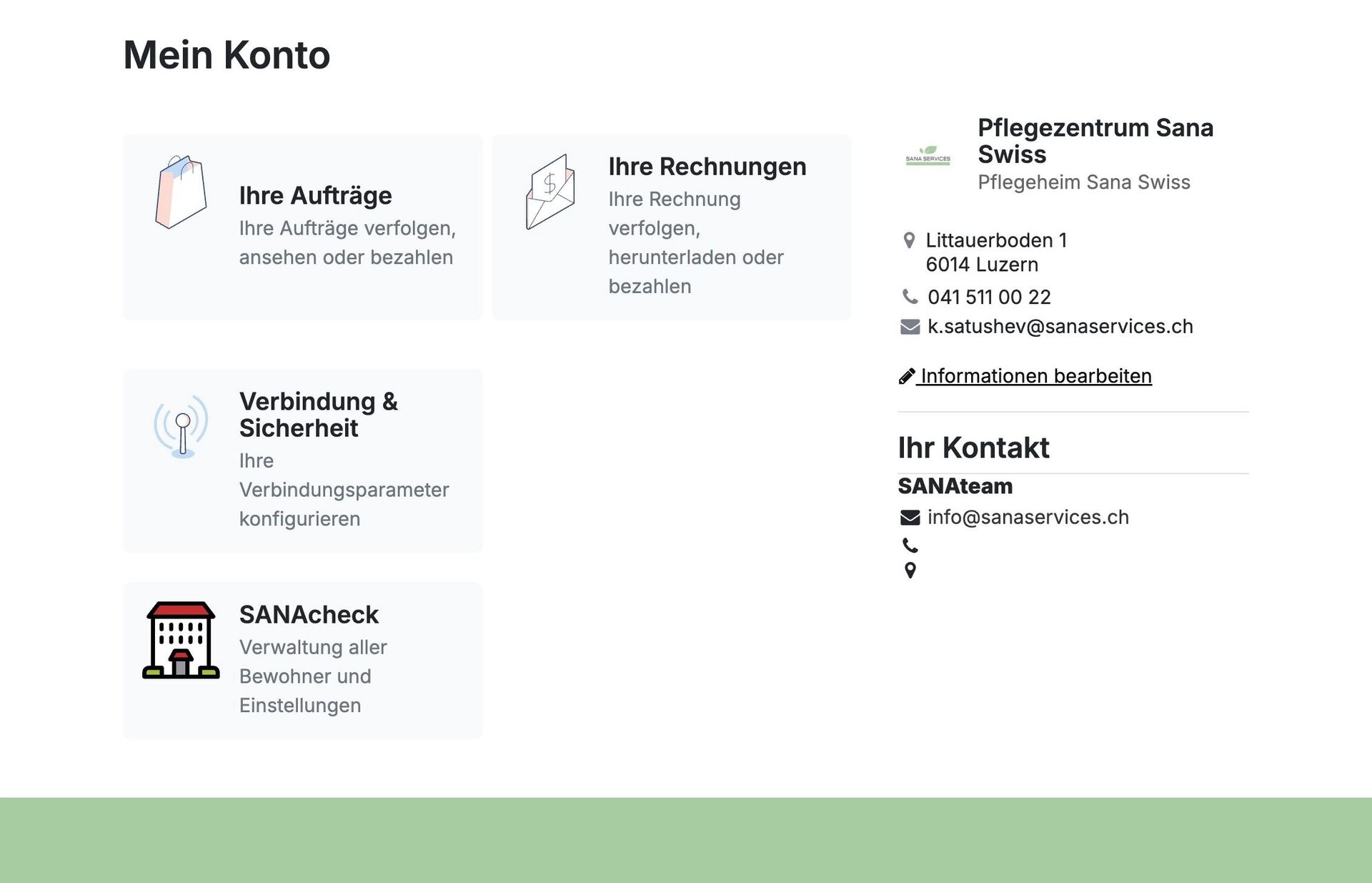
3. Click on "Edit Information".
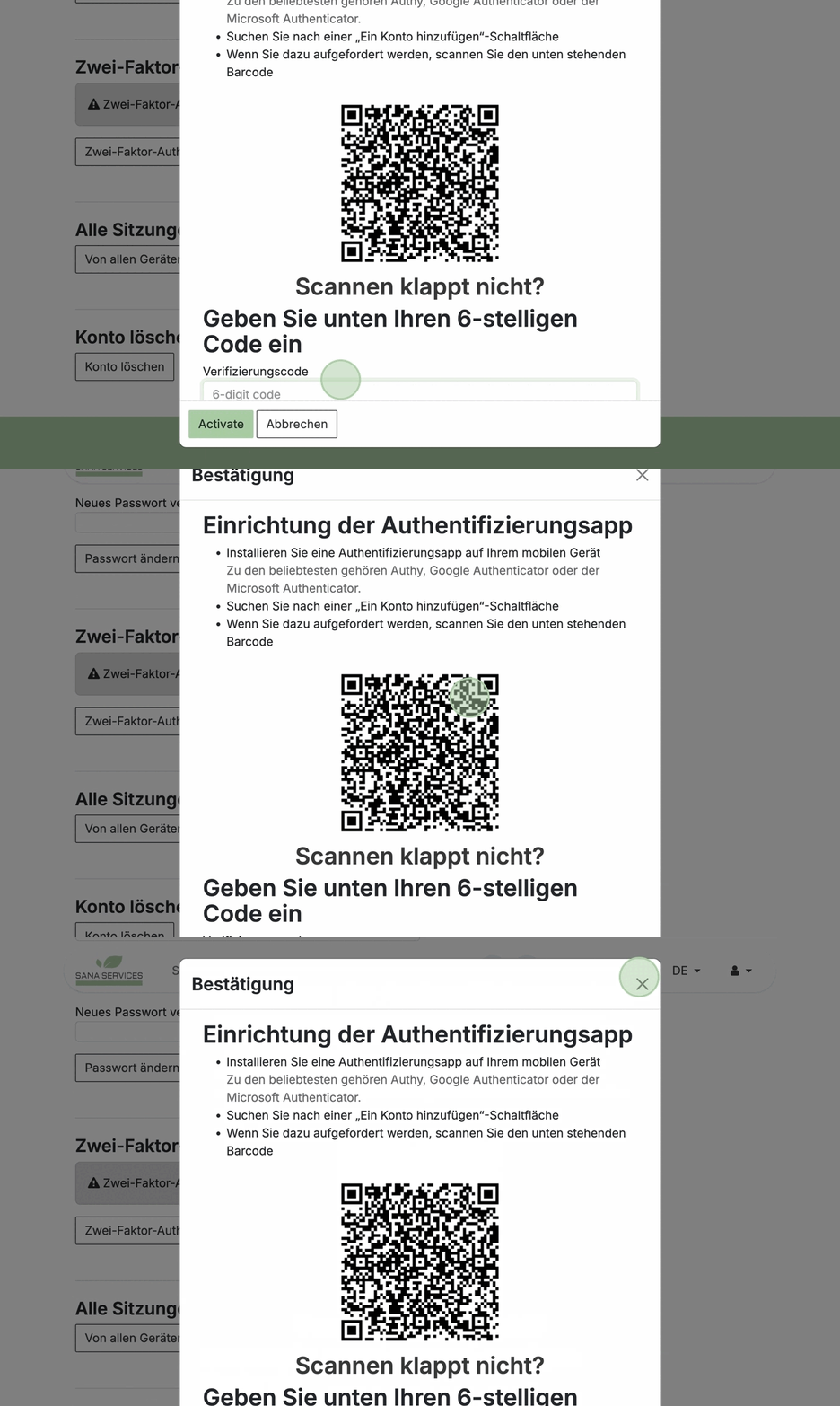
Under "My Account" you can review and update your contact information if needed.
You’ll also find an overview of all your "Orders" and "Invoices" – which you can easily view, track, or pay directly.
Two-factor authentication
4. For additional security, we recommend enabling Two-Factor Authentication (2FA).
Go to your user account under "My Account" → "Connection & Security"
Click on "Enable Two-Factor Authentication"
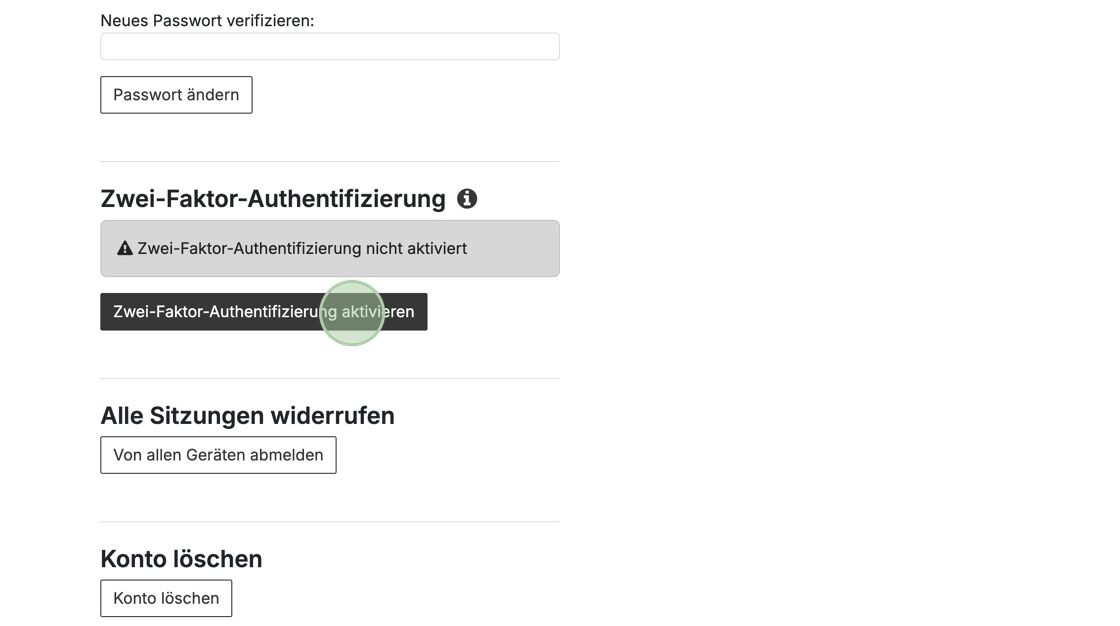
5. Setup using authentication app:
Install an authentication app on your mobile device, such as Authy, Google Authenticator, or Microsoft Authenticator
Open the app and select “Add Account”
Scan the QR code displayed on the screen
Having trouble scanning?
If scanning the QR code doesn’t work, you can alternatively enter the displayed 6-digit code manually in the app.
Basic setup: sections and departments
6. To work with SANAcheck, the basic functions must first be activated and configured.

Go to "My Account" and open the SANAcheck section "Manage all residents and settings." There you will find the menu item "Set up SANAcheck preferences".
Then click on "Sections are planned" to prepare the time slots and structure for your care routine. This step lays the foundation for all upcoming resident assignments and planning in SANAcheck.


7. In the next step, define the daily routine sections – that is, the time slots during which products or services will later be assigned to residents.
Each section can be named and customized individually: you define the section name, number, and start and end times.
Example: The section "Morning" could be created as section 1 – with a time span from 07:30 to 09:00.
This structure allows flexible and transparent planning – tailored to your facility's schedule.
8. You can add as many sections as you like to reflect your facility’s daily routine as realistically as possible.
In our example, the following sections were created: Morning, Morning (late sleeper), Noon, Afternoon, Evening, and Night shift.
This allows you to flexibly accommodate different routines and personalized care times.

9. Once you’ve defined the daily structure, enter your facility’s departments.
These reflect the spatial or organizational layout of your home and will later allow clear assignment of residents.
Example: Departments created include: Ground Floor (GF) and Upper Floor (UF) to differentiate floors, Apartments for semi-independent seniors, and a separate Dementia Unit tailored to specific care needs.
Departments provide a clear structure for planning and help maintain an overview in daily operations.
They help you assign residents purposefully and structure routines according to your organization.
Configuring procurement and stock

10. In the next step, define the procurement rules – that is, when and with what lead time products should be ordered.
Click on the "Regular Procurement Days" field and enter your desired frequency – e.g., "30" for monthly procurement.
Then click "Procurement Lead Time (Days)" and enter "7". This ensures timely ordering so the products arrive on time.
These settings help you manage supply and avoid shortages.
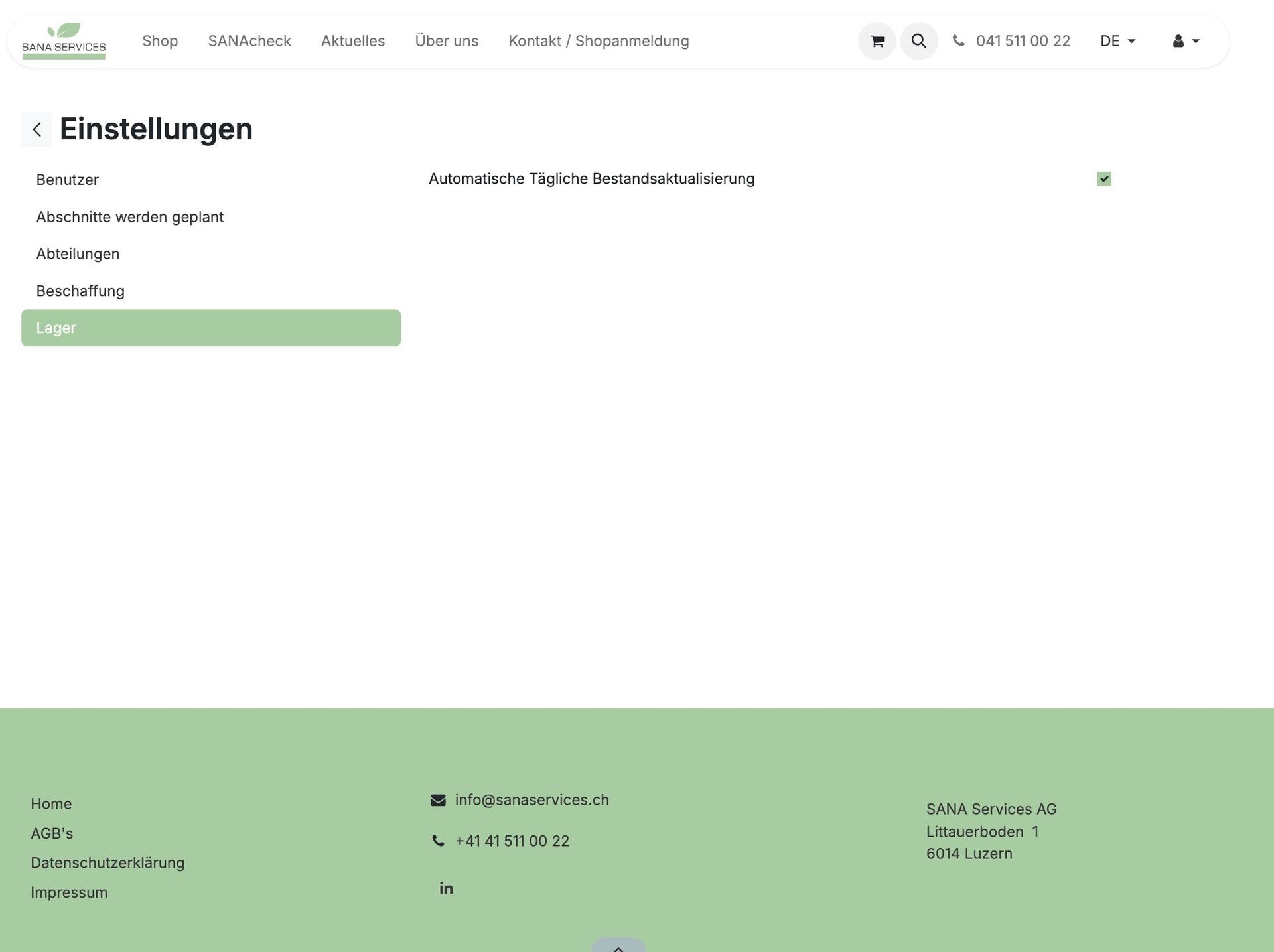
11. Optionally, you can manage your inventory directly with SANAcheck to track and monitor stock automatically.
To enable daily inventory updates, click on the field "Automatic Daily Inventory Update".
This keeps your stock synced regularly – helpful for aligning purchase suggestions with actual usage.
Adding residents
12. Once the basic settings are completed, you can now begin registering the residents of your facility in the system.
Go to the “Residents” section. Here you create a profile for each person – with essential data like name, date of birth, department, room, and insurance.
The registered residents serve as the basis for all other functions in SANAcheck – from individual needs assessment to automated order allocation.

13. You can update or edit resident data at any time by clicking the "pencil icon" next to their profile.
This way, all information stays up to date – for example, after department changes, new care requirements, or prescription updates.
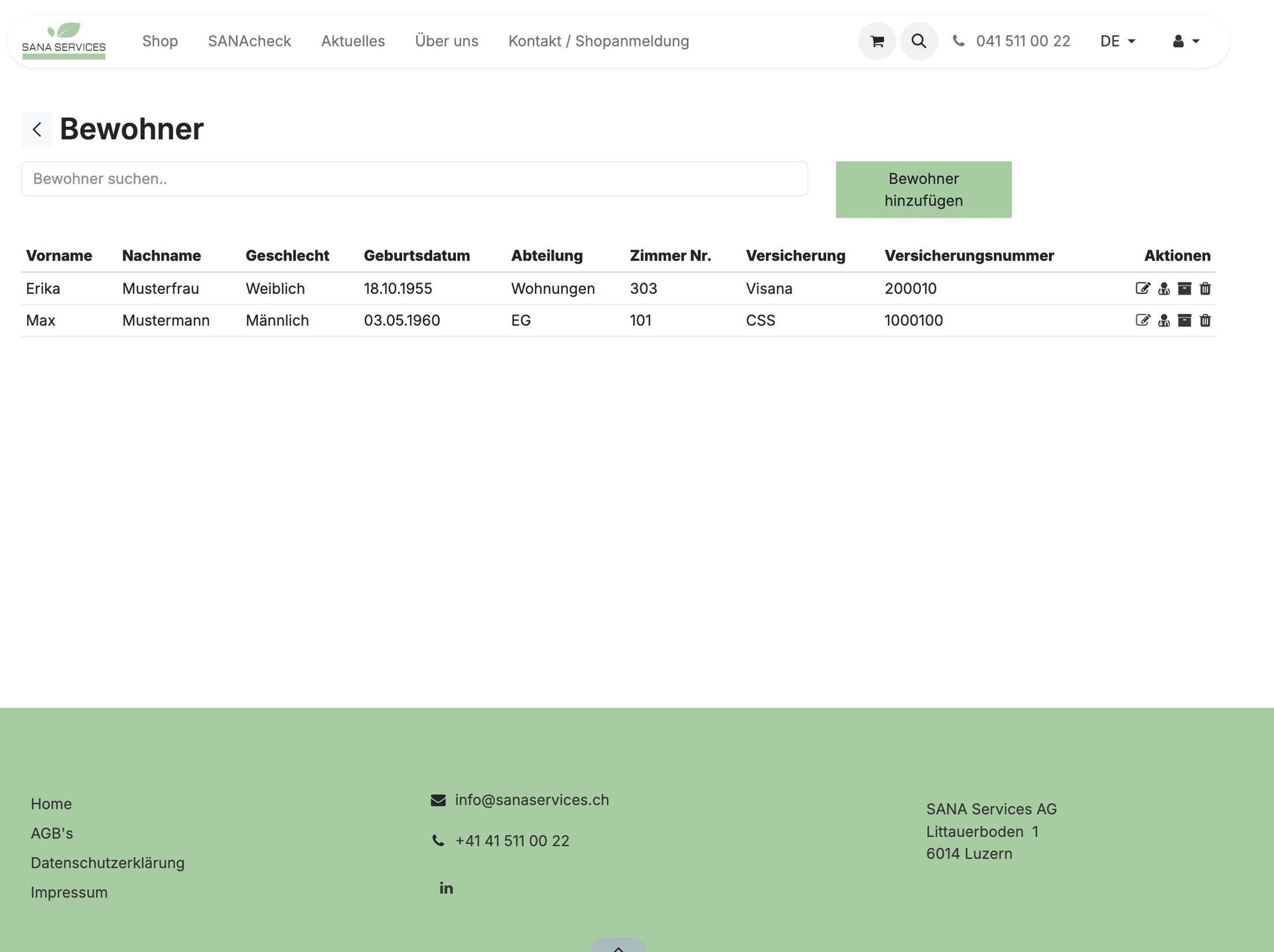
14. In the next step, you can enter a cost approval for each resident.
Select the appropriate MiGeL category. All categories are pre-loaded in the system – including the current MiGeL list rates.
Coverage amounts can be individually adjusted if needed.
Also enter the start and end date of the approval. By default, the system calculates a one-year validity from the start date.
Optionally, upload the prescription as a PDF to complete the documentation.
This enables accurate tracking of costs – including a check on whether consumption remains within the HVB care allowance. SANAcheck helps you stay within the flat rate by clearly recording needs, timeframe, and pricing.


15. Once residents and cost approvals are entered, go to the "Planning" section to define product use per resident.
Planning is based on the previously defined sections – e.g., Morning, Noon, Evening, or Night shift.
For each section, select a suitable product. All available products are already in the system, so no need to enter items manually.
You can plan different products for different times of day – e.g., extra absorbent products at night for better comfort and sleep.
The plan also shows: which cost approval applies to the resident, how much of the allowance has been used, and auto-calculated monthly and annual costs.
This allows you to detect rising needs early – and respond before the allowance is exceeded.

16. Additionally, you can print a resident card for each person.
This includes the planned sections and associated product use – based on your SANAcheck planning.
Cards can be placed in rooms so caregivers always see which product to use and when.
This ensures clarity and consistent care.
Placing an order

17. When you click "Procurement", you can place an order – based on current inventory and planned resident needs.
The system calculates how many units per product are needed to cover the planned uses for all residents.
Of course, you can adjust suggested quantities manually – if you want to order more or less than recommended.
This keeps you in control and allows flexible responses to changing needs.

18. Before finalizing the order, you can review it again.

Check all items and – if not already done – assign products to residents.
This assignment is also shown on the invoice, so you always know which costs are assigned to which resident.
This helps with documentation and cost approvals.
19. Next, choose your preferred delivery and payment method.
Tip 1: Orders over CHF 1,000.– earn you SANA bonus points – exclusively for online orders. You can redeem them with your next purchase or save them.
Tip 2: Orders over CHF 300.– qualify for free delivery.

20. To confirm delivery, click the account icon (top right) and select “SANAcheck”.
Go to “Inventory” → “Deliveries” to see upcoming shipments.
Click “Details” to review or adjust any delivery.
If everything looks good, click “Confirm” to place the order.
A PDF of the delivery is available for download.
An official confirmation including the delivery date will also be emailed to you.
Inventory and reports

21. In the “Inventory” section, you can also manage your stock.
In addition to automatic tracking, you can manually correct stock levels – e.g., for returns, wrong deliveries, or discrepancies.
This keeps your inventory accurate and clear.

22. SANAcheck also automatically creates two useful reports for cost tracking: “Report by MiGeL” and “Report by Resident”. Go to the menu item “Reports” and choose your preferred report.
The Report by MiGeL shows data per category – including resident names, coverage, usage, and remaining budget. You can filter by groups like Incontinence. Totals are calculated automatically. Great for insurance billing or internal reporting.
The Report by Resident gives a clear breakdown of all approvals per person – with coverage, usage, balance, and total cost. Helpful for communicating with families and documenting care.
23. Setup and use of SANAcheck is now successfully complete.
If you have any questions or need support, our customer service team is happy to help.
Thank you for helping us reduce healthcare costs together.
Your SANA Team
Note: All names and institutions used here are fictitious. Any resemblance to real persons or institutions is purely coincidental and unintentional.
0 comments